 AbsentMotion
Motion tracking
Make a title, sticker or shape follow something that moves in a video.
On this page
Motion tracking follows a detail of a video, such as a corner of a sign or a face, and writes position keyframes that you can give to another layer. It runs on your phone.
How to track
- Select a video layer. Put the playhead on a frame where the detail is clearly visible.
- Open the layer menu (three dots) and tap Track Motion. If the playhead is outside the clip, it jumps to the first frame.
- A box appears on the video. Drag it onto a sharp detail that stays visible, such as a corner or a texture. For rotation and scale, use two boxes and put them on two details of the same object, far apart.
- Choose what to track and where to apply it (below).
- Tap Track. A progress bar shows "Tracking... 40%". Tap Cancel to stop; frames already tracked keep their keyframes.
- When it finishes, the app says "Tracked N frames. The keyframes are on ...". Tap Done.
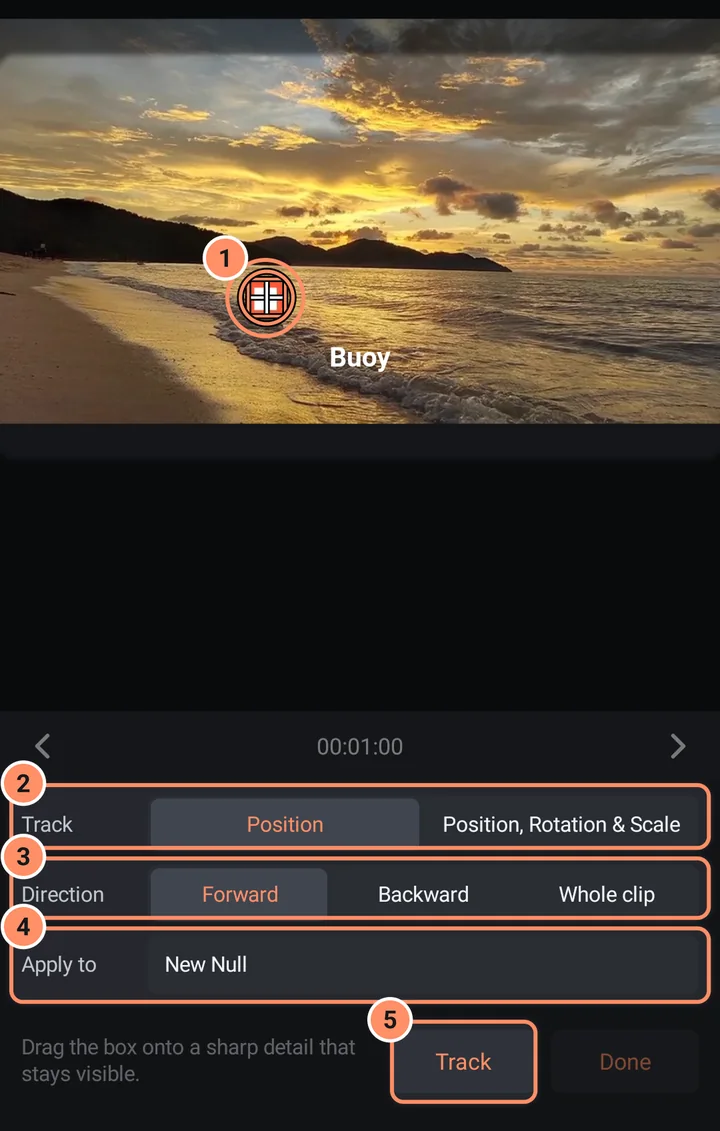
The options
| Option | Choices |
|---|---|
| Track | Position (one box), or Position, Rotation & Scale (two boxes) |
| Direction | Forward (the default) tracks from the playhead to the end of the clip, Backward from the playhead to the start, Whole clip does both |
| Apply to | New Null (a new invisible layer called Track 1, as long as the clip) or an existing layer |
The target gets position keyframes, and also rotation and scale keyframes in two-box mode.
Use the result
The most flexible way is New Null: then make your title, sticker or shape a child of the null with the parent button in the top bar (see The editor screen). It follows the video from then on. You can also choose the title layer itself in Apply to.
When tracking stops
If the detail is lost, the run stops with a message: "Tracking was lost at frame N. Move the point back onto the same feature and tap Continue." Move the box back onto the same detail, tap Continue, and tracking carries on from there. If the spot has too little detail, move the box onto a sharper corner or texture.
Tips
- Pick something with strong contrast that stays in view and does not change shape.
- Put the playhead on the clearest frame before you place the box, then choose Whole clip to track both ways from it.
- You can edit the keyframes afterwards like any others: see Keyframes and easing.