 AbsentMotion
Audio
Add music and sounds, set volume, use audio effects and voice filters, mark beats and turn text into speech, all offline.
On this page
Getting sound into a project
AbsentMotion has no built-in music or sound library: you use the audio files on your phone, the sound of your videos and voices made from text.
- Add, Audio tab: music and sounds stored on your phone. Tap a tile to hear it and tap its + strip to add it at the playhead. View all opens a file picker. The app asks for permission to read audio files the first time.
- Text to Speech (same tab): see below.
- The sound of a video clip plays with the clip. Extract Audio in the layer menu splits it out into its own audio layer.
- Videos recorded with the in-app camera have the sound of the microphone, if you allowed it.
- The Text Blips effect gives a text layer a short blip for each letter it types: see Text and fonts.
An audio layer is named after the file and starts at the playhead. The project's length always follows the end of the last layer, so a long sound makes the project and the export longer.
On the timeline an audio layer is a violet bar with its waveform. The tools are Speed, trim and split, Volume, Presets, Effects, Mark Beats and AI. Voice filters are inside Effects. AI contains Reduce Noise and Auto captions for the selected clip.
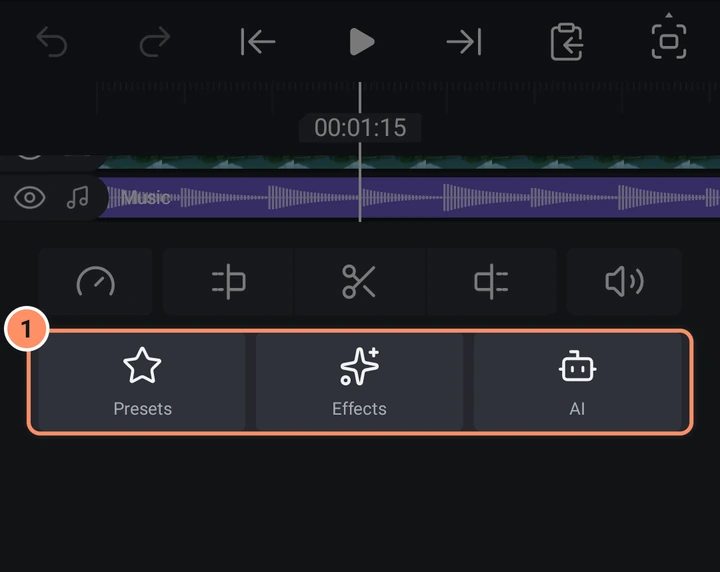
Volume
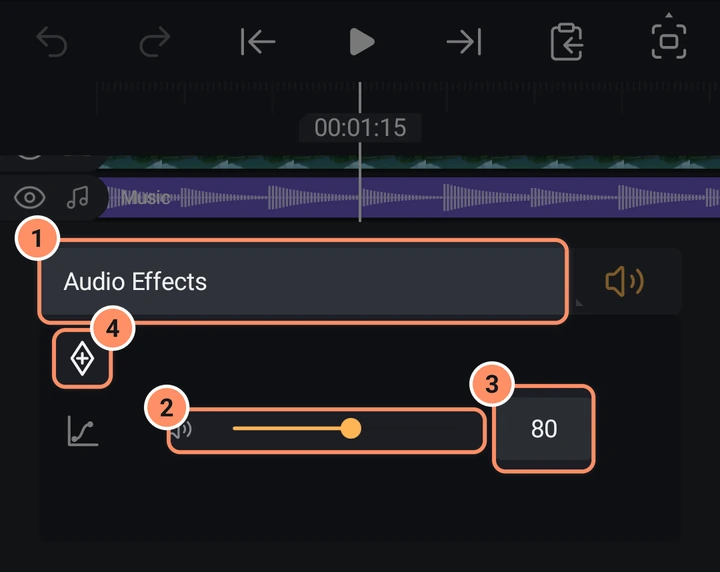
Volume (the speaker icon) opens the volume panel for sound clips and videos. The slider goes from 0 % to 150 % (default 100 %) and has a value box. It can be animated with the keyframe and easing buttons, which is how you make fade-ins and fade-outs. A clip at 0 % with no keyframes is muted, and the speaker icon shows it.
The first button of the panel, Audio Effects, opens the effects of the clip.
The sound of a clip follows its speed (see Photos, video and speed). Sources with more than two channels are mixed down to stereo.
Level meter
While the project plays, the level of the whole project shows on a meter. On a phone it is the thin line under the play bar: the left half grows out from the middle with the left channel and the right half with the right channel, and a side turns red when it clips. A tablet held sideways also shows a slim meter at the top left of the preview, and a computer shows it on the left of the window, right of the buttons and under the project name: an L and an R bar with the level of the whole project in dB under them.
Audio effects
For a sound clip, Effects opens the effects library already on the Audio category. For a video clip, an Audio category sits in the normal library. Inside the volume panel, the Audio Effects button opens the list. In the list:
- Preset chips at the top replace the whole chain: Radio, Telephone, Small Room, Hall, Stadium, Underwater, Echo, Bass Boost, Vocal Clarity and Noise Gate.
- Each row has a name, an eye (Bypass that effect) and a grip (Reorder: the order is the processing order).
- Add Audio Effect offers the ten effects below. A clip can hold up to 16 units: every effect costs 1, Voice Filter costs 7.
- The buttons in the left column Bypass all effects at once or Delete all.
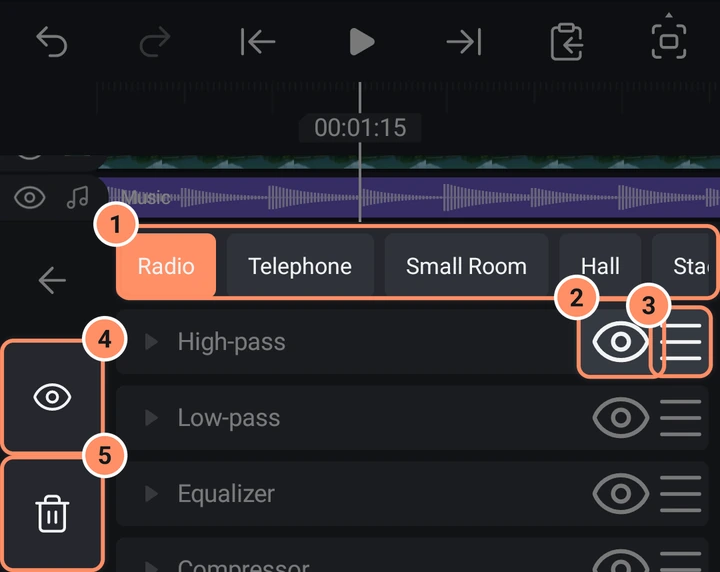
Each effect has a Mix slider (0 to 100 %) and its own sliders. Tap a value to type it.
| Effect | Settings (range, default) |
|---|---|
| Equalizer | A low shelf, three middle bands and a high shelf. Low Freq 20 to 1000 Hz (120), Low Gain, Mid 1 to 3 Freq (400, 1500, 5000 Hz), Gain and Q (0.1 to 10), High Freq 1000 to 20000 Hz (10000), High Gain. Gains are -24 to 24 dB. |
| Low-pass | Cutoff 20 to 20000 Hz (5000), Resonance 0.1 to 10 (0.71), Slope 12 or 24 dB/oct |
| High-pass | Cutoff (200), Resonance, Slope, as above |
| Reverb | Room Size, Damping, Wet, Dry, Width (0 to 100 %), Pre-delay 0 to 200 ms |
| Echo | Time 1 to 2000 ms (250), Feedback 0 to 95 %, Echo Level, Ping-pong, Low Cut 20 to 2000 Hz |
| Compressor | Threshold -60 to 0 dB (-18), Ratio 1 to 20 (4), Attack, Release, Knee 0 to 24 dB, Makeup 0 to 24 dB |
| Noise Gate | Threshold -100 to 0 dB (-50), Attack, Hold, Release, Range 0 to 100 dB |
| High Pitch | Amount 0 to 12 semitones (5), shifts up |
| Low Pitch | Amount 0 to 12 semitones (5), shifts down |
| Voice Filter | Pitch -12 to 12 semitones, Bass, Treble, Muffle, Thin, Fullness, Echo, Reverb, Ping-pong |
Reverb and echo keep ringing after the clip ends, for up to ten seconds, and fade out. A limiter at the end of the chain is always on and cannot be edited; it keeps the total sound from clipping (the ceiling is -1 dB).
Voice filters
Open Effects > Voice filters to see ten voices: Helium, Deep, Bass Boost, Full Voice, Vocal Clarity, Echoey, Ethereal, Underwater, Cheap Mic and Telephone. Picking one sets a single Voice Filter effect on the clip, which you can then fine tune in the audio effects. Picking another voice replaces it.
Reduce noise
The AI tool for audio clips reduces background noise on the phone: see AI tools.
Mark Beats
Mark Beats is a tile in the tools of an audio layer, and an entry in the layer menu of any clip with sound. It listens to that clip alone and adds a bookmark on every beat it finds (the tempo can be between 60 and 180 beats per minute and the beats must follow a steady grid). Then cut your video on the bookmarks: they are snap points on the timeline. The Beat effects (Beat Zoom, Beat Shake, Beat Flash and the others) and Particles set to On Beats move on these bookmarks; without bookmarks they follow their BPM setting. It says "N beats marked", "No new beats found" or "Beats could not be found".
Text to Speech
Add, Audio, Text to Speech turns text into spoken audio with the voices that Android already has on your phone. It works offline and does not use any online service.
- A text box ("Type what the voice says").
- Language and Voice (voices are named "Voice 1", "Voice 2" and so on for each language). Only voices installed on the phone are listed, and voices that need the internet are hidden. If there are none, the app says "No offline voices on this device". You can add voices in your phone's own text to speech settings.
- Speed and Pitch, 50 % to 200 % (default 100 %).
- Preview speaks the text without adding anything. Add makes an audio layer at the playhead, named after the first characters of the text.
Sound in your export
The mix of every audible clip (with volume, keyframes, speed and effects) is rendered when you export a video, and you can also export only the sound: see Export. To save the sound of a video file without opening a project, use Extract Audio in the Tools tab: see The home screen. Hidden layers are silent. If a file's sound cannot be read, the app tells you after the export and that clip is silent.