 AbsentMotion
Projects, backup and import
How projects are saved, versions and crash recovery, backups, missing media, importing project files and where files live.
On this page
Saving
There is no Save button. After every change the editor writes the project to the phone a moment later, in a way that cannot leave a half-written file. While you are in the middle of a drag, a draft is written too. If saving fails because the phone is full, the app says "Could not save the project. Free some storage space." and tries again.
Version history
The app keeps earlier versions of every project. A version is stored when you open the project, when you close it, and after a save if the newest version is at least two minutes old. It also stores one before a restore and before you answer a crash-recovery question. The app keeps the 20 newest versions and the latest one of each of the last seven days, and deletes older ones.
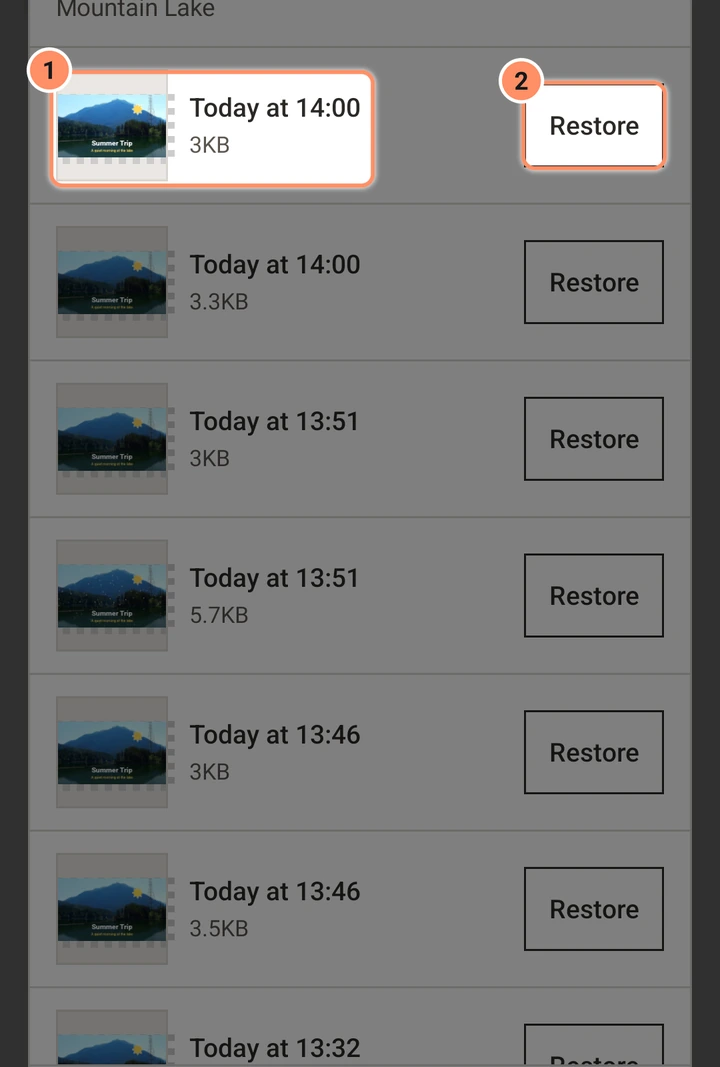
Open it from the project card's menu (Version history) or in the editor's project settings (Earlier versions). Each row has a thumbnail, the time ("Today at 14:05", "Yesterday at 09:30") and Restore. Restoring asks first: "The project goes back to how it was ... The current state is kept in Version history, so nothing is lost."
Crash recovery
If the app stops unexpectedly while a project is open, the next start shows AbsentMotion closed unexpectedly with the reason in one sentence, such as "It ran out of memory while exporting." If there were unsaved edits it asks "Restore your last edits to ...?" with Restore and Discard. A discarded draft stays in the project's version history.
Each crash is also written to Crash logs in Settings: time, one-sentence reason, app and Android version, phone model, what you were doing, and the technical detail. The last 20 are kept. Nothing is ever sent anywhere; you can copy one to send it yourself.
A damaged project
If a project file cannot be read, its card says Damaged — restore a version. Tap it to restore an earlier version, or delete it.
Media files
Photos, videos and audio you add are, by default, copied into the project, so the project does not depend on your gallery. Turn this off with Keep a copy of imported media in the project in Settings if you want to save storage.
- Collect media into project (project card menu) copies every file the project still reads from outside its own folder into the project. It first tries to find files that went missing.
- Missing media. When a file is not on the phone any more, the app looks for it in your photo, video and audio library by its exact name and size when the project opens, and uses it if exactly one file matches. To fix it by hand, select the layer, open Media Info in the layer menu and choose Swap media file. If you export with missing files, the app warns you and leaves those layers out.
Backup and restore
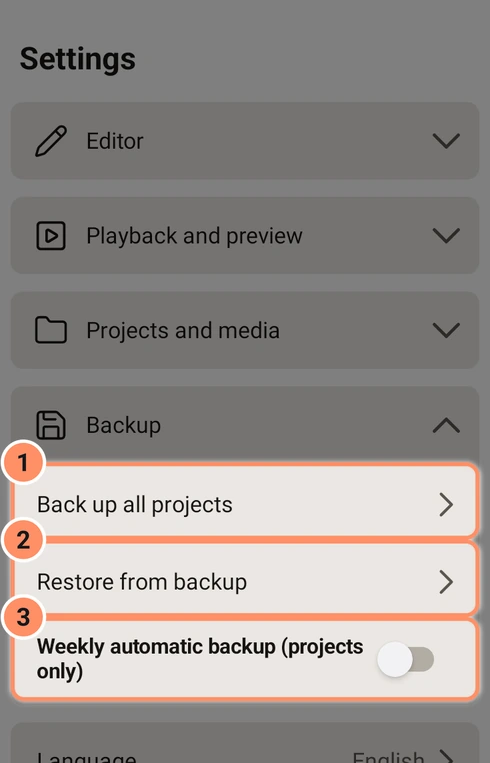
In Settings, group Backup:
- Back up all projects makes one file,
AbsentMotion-backup-followed by the date and time, ending in.absbackup, in Documents/AbsentMotion. It contains all projects with their version history, templates with their media, presets, your color palettes, imported fonts, AI results and all kept media. It needs free space about the size of the content plus 50 MB. The file stays on the phone even if you uninstall AbsentMotion; copy it to a computer or a cloud service to keep it safe. - Weekly automatic backup (projects only) is off by default. When on, a few seconds after the app opens, if seven days passed since the last backup, it writes
AbsentMotion-weekly-...absbackupwith the projects only (no media) and deletes the previous weekly file. Manual backups are never deleted by the app. - Restore from backup asks you to pick a backup file. A project that is already here and the same is left alone; a project with the same name but different content is restored as a separate copy. Nothing that exists is overwritten. The restore can be stopped and run again later.
Importing project files
You can open a project file from another app (for example a file manager) with Share or Open with. For an import button on the home screen, turn on Show the import card in the project list: the Choose file card then appears above your projects.
| File | What you get |
|---|---|
.absproj made by AbsentMotion | A normal project with its media |
A project package from another editor (.amproj) | Each scene becomes a template, and any assets stay assets |
| A plain scene XML file | A normal project. Media links are not followed for safety, so media shows as missing unless it can be found in the gallery. |
An Adobe Animate file (.fla) | A normal project: see Adobe Animate files |
Effects that AbsentMotion has are converted. Effects it does not have stay in the file but are not drawn. After an import, a report lists only what did not come over: effects it cannot run, settings that could not be carried over, media not found and fonts not installed. When everything came over, no report is shown. Backup files (.absbackup) are restored from Settings, not imported here.
There are limits to protect the phone. For example, a package can have at most 2000 files and 32 projects, be at most 2 GB unpacked, and a scene needs a size of at most 16384 pixels and a frame rate from 1 to 240. The app says which rule a file broke.
Adobe Animate files
AbsentMotion imports .fla files saved by Adobe Animate or Flash CS5 and later. Open one like any other project file: with Choose file, Share or Open with. On a computer, use File, Import Project… or drop the file on the window; there an .xfl file works too, as long as the rest of its folder is next to it. On the phone, pack an XFL folder into a ZIP file and import that.
The file becomes one project with the stage size, frame rate and background color of the Animate file, and its scenes play one after another.
- Comes over: shapes with solid, two-color gradient and picture fills, and their lines; symbols, each as a group with its own timeline; pictures; classic tweens as keyframes, with their eases; alpha, tint and brightness; mask layers; and MP3 sounds on the main timeline.
- Left out: text fields, ActionScript, filters, blend modes, other color effects, motion guide paths, camera layers, components and compiled clips, videos, bone (IK) poses and library symbols that are not on the stage. A shape tween shows its start shape and a motion tween its first keyframe. Gradients with more than two colors keep two, dashed and other special lines are drawn solid, and eases that cannot be read become straight motion.
After the import, the report lists both, with a count for each: Imported from the Animate file and Not imported (shown without it).
Older .fla files from Flash CS4 and before use another format. The app then says: "This .fla file was saved by Flash CS4 or older. Only .fla files from Flash CS5 and later can be imported."
File formats and where things are
- A project is one XML text file. Media sit beside it in the project's private folder.
- An
.absprojis a ZIP:project.xml, amanifest.jsonand the media files undermedia/. 3D models keep their files in a folder. - An
.absbackupis a ZIP with every project, preset, template, font and media file. - Private app storage (removed when you uninstall): projects and their thumbnails, version history, kept media, templates, presets, color palettes, crash drafts, crash logs, imported fonts, the caption model, preview copies and AI results.
- Shared storage (stays when you uninstall): Movies/AbsentMotion (videos), Pictures/AbsentMotion (GIFs, still frames, image sequences and palette pictures), Music/AbsentMotion (audio exports), Documents/AbsentMotion (
.absproj, XML, backups and palette files) and DCIM/AbsentMotion (photos and videos from the in-app camera).
AbsentMotion does not use the broad "all files" permission: it saves through Android's media storage.