 AbsentMotion
Export
Every export option: video formats and codecs, resolution, frame rate, GIF, image sequences, audio files, project bundles and the checks the app makes.
On this page
Tap Export & Share (the share icon) in the editor's top bar, or Export in a project card's menu on the home screen. The screen is called Export Project.
The screen
At the top, three lines of information: Available space, Estimated file size and Estimated export time. Under them is the Filename field, then cards for each kind of export; tap a card to select it and tap its arrow to see its options. At the bottom are the switch Also keep a copy as a Template and the big Export button.
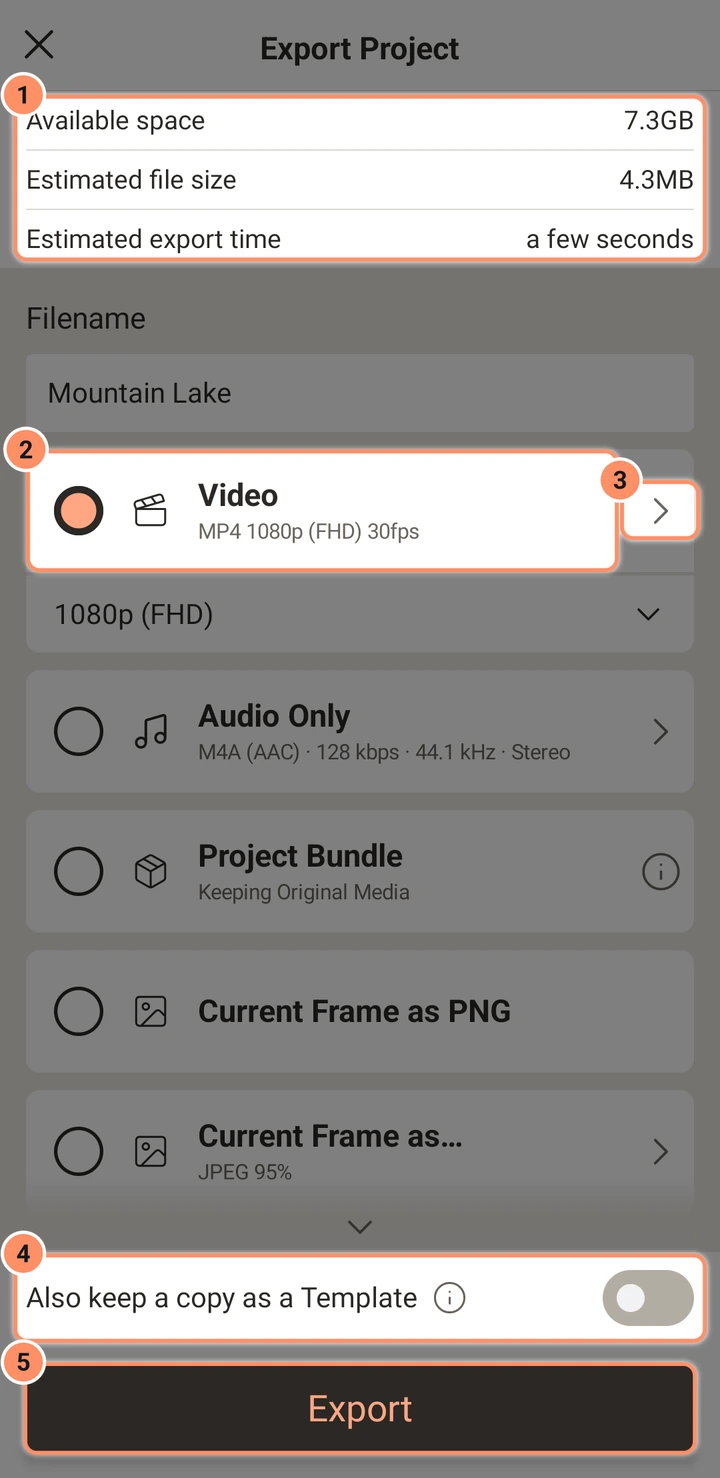
The button turns gray with a reason when the export cannot run: Not enough storage or Not supported on this phone. A choice that this phone cannot do is dimmed, and tapping it explains why. The app remembers the settings of each kind, except that a video export starts at the project's own frame rate.
| Card | Result | Saved in |
|---|---|---|
| Video | MP4, MOV, MKV or WebM | Movies/AbsentMotion |
| Audio Only | WAV, FLAC, M4A, OGG or MP3 | Music/AbsentMotion |
| Project Bundle | An .absproj file with the project and its media | Documents/AbsentMotion |
| Current Frame as PNG | One PNG image of the frame at the playhead | Pictures/AbsentMotion |
| Current Frame as... | One image: PNG, JPEG, WebP, WebP lossless or BMP | Pictures/AbsentMotion |
| Image Sequence | One image per frame, in a folder | Pictures/AbsentMotion |
| GIF | An animated GIF | Pictures/AbsentMotion |
| XML | The project file only, for other tools (only from the project list) | Documents/AbsentMotion |
The Filename field starts as the project name and you can change it; letters, digits and the signs space, dot, dash, underscore, comma and plus are kept. In the options of Video, Current Frame, GIF and Image Sequence the switch Random numeric filename gives each export a random 16-digit name instead, and the field then says "Generated on export". The files are saved through Android's normal media storage, so other apps and the Gallery can see them. If an export fails or you cancel, the half-written file is removed.
Video
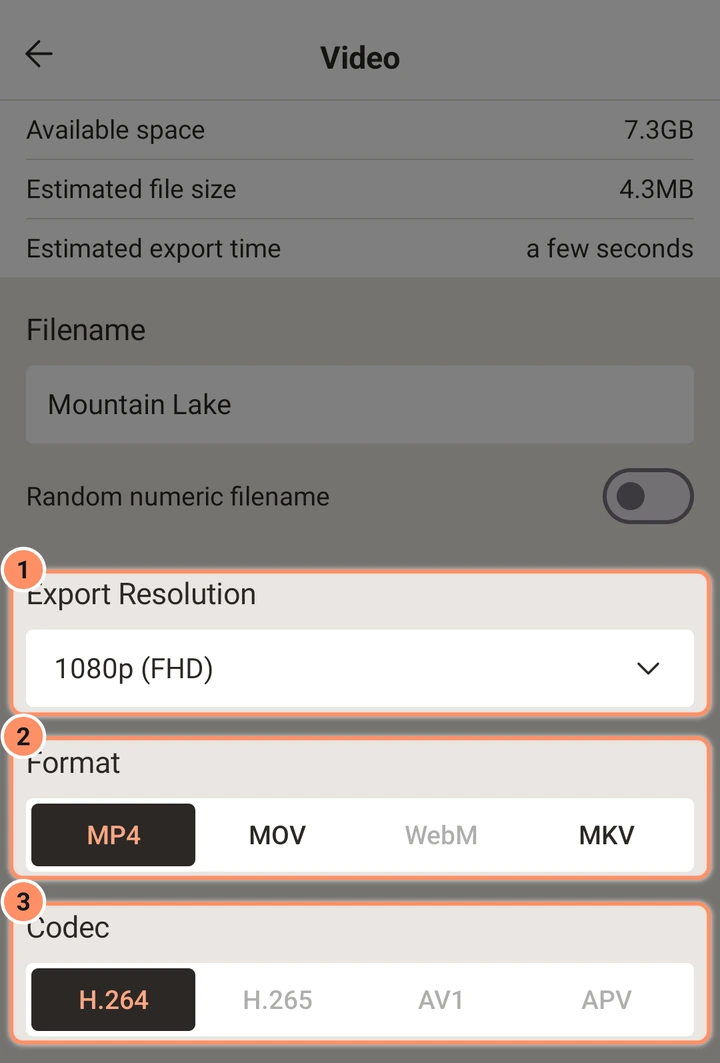
Export Resolution. 2160p (4k), 1440p (QHD), 1080p (FHD), 720p (HD), 540p (SD), 360p, 270p or 180p. The number is the short side; the long side follows the shape of the project. The default is the largest size that is not above the project's own size. Sizes that your phone's video encoder cannot make are dimmed with the reason.
Format and codec. The format is the file type; the codec is how the picture is compressed.
| Format | Codecs |
|---|---|
| MP4 | H.264, H.265, AV1, APV |
| MOV | H.264, H.265 |
| WebM | VP9, AV1 |
| MKV | H.264, H.265, AV1, VP9 |
A codec is only offered if your phone has an encoder for it (for example "This phone has no AV1 encoder."). H.264 is the default and plays everywhere. H.265 makes smaller files for the same quality but some older players cannot open it. AV1, VP9 and APV depend on the phone. Switching the format keeps the codec if it fits, otherwise the app picks one that does.
Frame Rate. A slider with stops at 10, 15, 24, 25, 30, 48, 50 and 60 fps, plus the project's own frame rate. The default is the project's frame rate.
Frame Interpolation. Pick a method, then a level, with a help button that explains each one and how well your phone should handle it. It matters when a video clip has a lower frame rate than the export, for example a 30 fps clip in a 60 fps export:
- Off: each clip shows its own frames. A 30 fps clip in a 60 fps export shows every frame twice, so motion can look a little stepped.
- Frame blending: the new in-between frames mix the nearest frames like a quick cross-fade. Fast to export; fast motion can look ghosted.
- Low leans toward the nearest real frame, so there is less ghosting.
- Medium mixes the two nearest frames evenly.
- High mixes four frames for the softest motion; it also softens the clip's own frames a little so the picture does not pulse between sharp and soft.
- Optical flow: the app follows how each part of the picture moves and draws real in-between frames. Smoothest motion, but the export is slower and very fast motion can smear at the edges.
- Low follows the motion roughly and is the fastest.
- Medium is the balanced choice.
- High follows the motion most closely, for the cleanest in-between frames, and takes the longest.
- AI Smooth: an AI model draws the in-between frames. It copes with fast motion and edges that appear or disappear better than Optical flow, but it is much slower. Each level needs a one-time download of about 11 MB; the first export with a level asks before it downloads, and the screen shows how long it should add on this phone.
- Low uses a lighter model and suits Good phones.
- Medium is the model to start with.
- High uses a larger model for the hardest scenes; keep it for Fast phones or short clips.
It only acts on video clips whose frame rate (counting the clip's speed) is lower than the export. Shapes, text and effects are always drawn at every export frame. It is also available for GIF and image sequences. The live preview never uses it; to see smooth frames in the preview, use Smooth on the clip (see Photos, video and speed).
Motion Blur. Off, Low, Medium or High. It smears the moving parts of video clips like a camera shutter that stays open longer (a quarter, a half or a whole frame). Unlike Frame Interpolation it also helps when a clip already has the export frame rate: fast pans and quick movement look smoother and less choppy. It only changes video clips, never shapes or text (for those, use the Motion Blur effect).
Quality. A slider from Low to High that shows the resulting bit rate (for example "5.9 Mbps"). The bit rate follows the picture size, the frame rate and the codec: H.265 and AV1 need less than H.264 for the same look. The phone's encoder may adjust it a little.
Audio. A row such as "AAC · 128 kbps · 44.1 kHz · Stereo" opens the audio settings of the video:
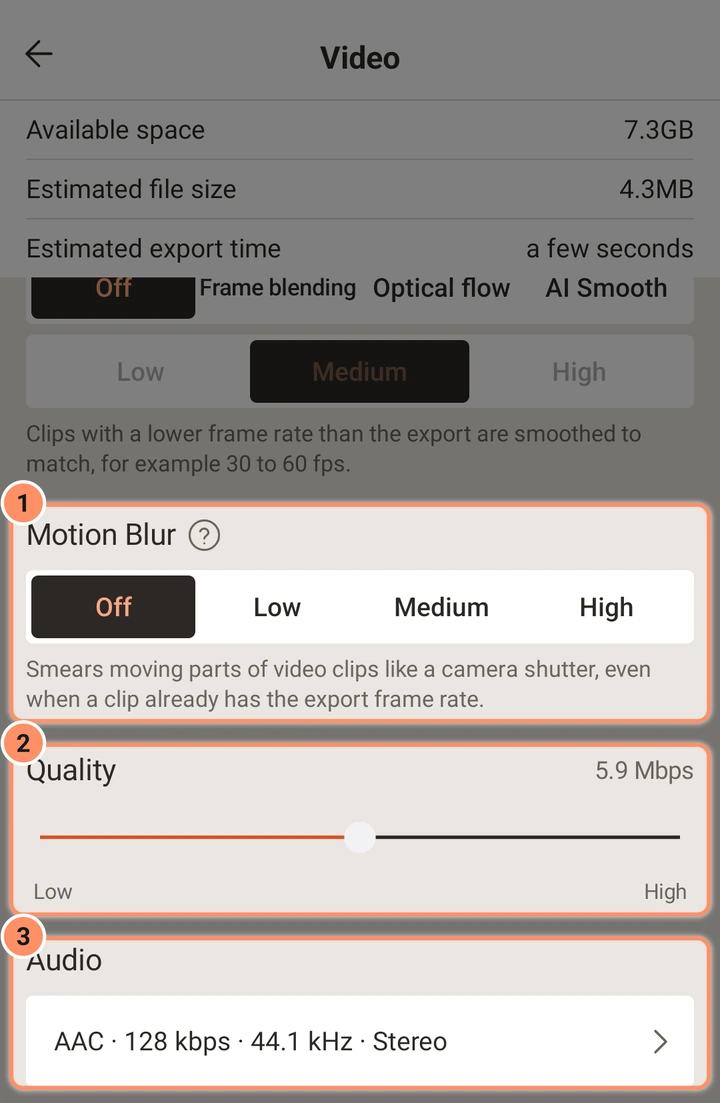
- Codec: AAC (MP4, MOV, MKV) or Opus (WebM, MKV). The other one is dimmed with the reason.
- Bit Rate: 64, 96, 128 (default), 160, 192, 256 or 320 kbps.
- Sample Rate: 44.1 kHz (default) or 48 kHz. Opus always uses 48 kHz.
- Channels: Stereo (default) or Mono.
A project with no sound makes a video without an audio track.
Color. Videos are exported as standard 8-bit SDR video (BT.709). There is no HDR export. HDR videos you import are converted to standard colors.
Transparency. Video files have no transparency. Transparent areas of the project come out black.
Warnings
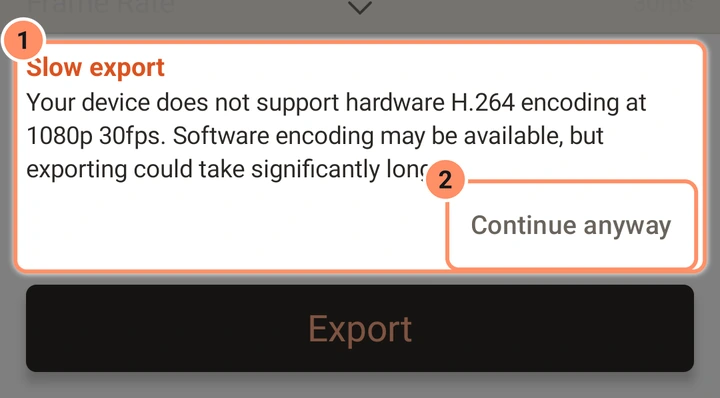
When the phone has only a software encoder for your choice, or its hardware encoder is rated slower than your frame rate, a card says Slow export and offers Continue anyway and a suggestion such as Use H.264 · 1080p. If the settings cannot be exported at all, the card says Not supported, with a button to switch to settings that work.
Audio Only
- Format: WAV 16-bit, WAV 24-bit, FLAC, M4A (AAC, the default), OGG (Opus) or MP3. WAV and MP3 work on every phone; the others need an encoder on the phone.
- Bit Rate: 64 to 320 kbps for M4A, OGG and MP3. WAV and FLAC are lossless and have none.
- Sample Rate: 44.1 or 48 kHz (OGG is always 48 kHz). Channels: Stereo or Mono.
The file is the whole project length and contains the mix of every audible clip with its volume, effects and the limiter. The card is dimmed with "This project has no sound" if there is nothing to hear.
GIF
Choices: Transparent areas become White (default) or Black, Size (720p, 540p, 360p by default, 270p, 180p), Frame Rate (5, 10, 12, 15 by default, 20, 25, 30) and Frame Interpolation. A GIF has 256 colors per frame and loops forever. GIF timing is in hundredths of a second, so 30 fps is only approximate. The estimated size is measured by encoding a few sample frames.
Image Sequence
One image per frame, saved in a folder named like the Filename (the project name unless you change it) as frame_00001.png, frame_00002.png and so on. Choices: Format (PNG, JPEG, WebP, WebP lossless, BMP), Quality (50 %, 70 %, 85 %, 95 % by default, 100 %, for JPEG and WebP), Transparent areas become (White or Black, for JPEG and BMP only), Resolution, Frame Rate (10 to 60) and Frame Interpolation. PNG and WebP lossless keep transparency.
Current Frame
Current Frame as PNG saves the frame at the playhead at the full project size with transparency. Current Frame as... adds a format (PNG, JPEG by default, WebP, WebP lossless, BMP), a quality for JPEG and WebP (95 % by default) and what transparent areas become. From the project list, the first frame is used.
Project Bundle and XML
- Project Bundle makes one
.absprojfile with the project and the original media it uses. Keep it as a backup or move the project to another phone: see Projects, backup and import. - XML saves only the project file, without media. It is only offered from the project list.
Check before and during export
- Storage. The app needs the estimated size plus a safety margin. If that is more than the free space it says "Not enough" and stops; if less than 1 GB would be left it says "Low". If the phone runs out of space during the export, the export stops and the unfinished file is removed.
- Estimates. The size and time estimates improve as you export: the app learns from your last exports. Before that, it uses the speed measured by the check on first start. The time estimate also draws a few frames of your project at the chosen size (for GIFs and image sequences it also encodes them), so heavy effects such as VHS or blurs and big videos make it longer.
- Busy encoder. If the phone's hardware video encoder is busy (for example another app holds it) or refuses the size and frame rate, the export first asks it to work at its own pace, then uses the slower software encoder and says so while it runs. Only if every encoder refuses does it stop, with "This phone's video encoder is busy or cannot make this size".
- Missing media. If a project uses files that are not on the phone, the app lists them first ("Media Missing"). Export Anyway leaves those layers out.
- Heat. If the phone gets warm, the export slows down on purpose by pausing a little after each frame, and a message says so. When it is very hot, it pauses between frames until it cools down.
- Leaving the app. A video, audio, GIF, image sequence or project bundle export keeps going when you switch to another app: a notification shows its progress and has a Cancel button, and when the export finishes while you are away it says so. On Android 13 and newer the app asks once, at the first export, whether it may show notifications; if you say no, the export still continues, only the notification is not shown. Closing AbsentMotion from the recent apps list stops the export. While the app is open the screen stays on. There is no pause button; Cancel (or the Back button) stops the export at once and deletes the unfinished file.
- Check afterwards. Finished video and audio files are opened again and checked: tracks present, length right, first and last frame readable, and a picture from the middle compared with what the project shows there, so a black or frozen video is caught. The result shows as "Checked: plays correctly". Pictures and GIFs are checked too. If something is wrong, it tells you what.
When it is done
The Saved to storage screen shows where the file is, plays it back (or shows the image or the pictures one by one; if the phone cannot play the video right now, it shows its first frame with a play button that tries again), and has Share Video, Share GIF, Share Image Sequence, Share Image, Share Audio or Share Project XML to send it with Android's share sheet, and OK.
Keep a copy as a Template
The switch Also keep a copy as a Template (off every time) keeps the project and its media under Templates on the home screen after a successful export. See Assets, templates and presets.