 AbsentMotion
Transitions and animations
One-tap transitions between clips and In, Out and Loop animations for any layer.
Both write ordinary keyframes and effects that you can edit afterwards, so you can use them as a starting point.
In, Out and Loop animations
- Select a visual layer (not sound, a camera or a null).
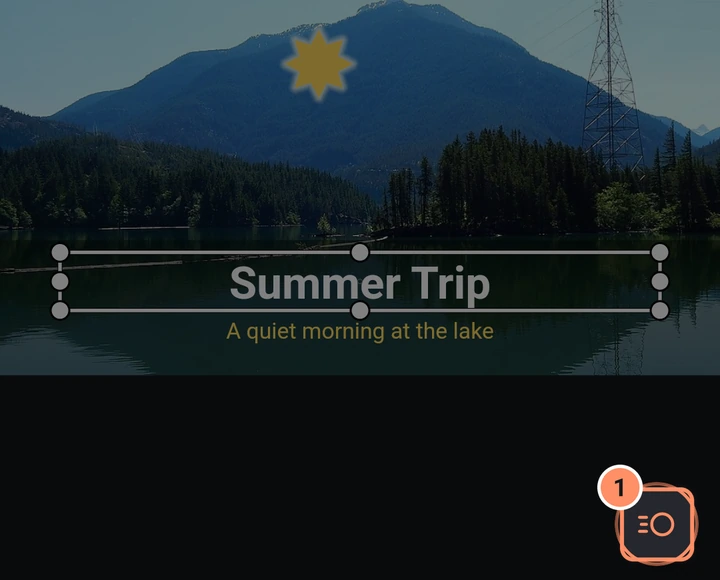
- Tap the round Animate button at the bottom right of the preview. The Animations sheet opens.
- Choose In, Out or Loop at the top, then a tile. None is first in the grid.
- Set the Duration.
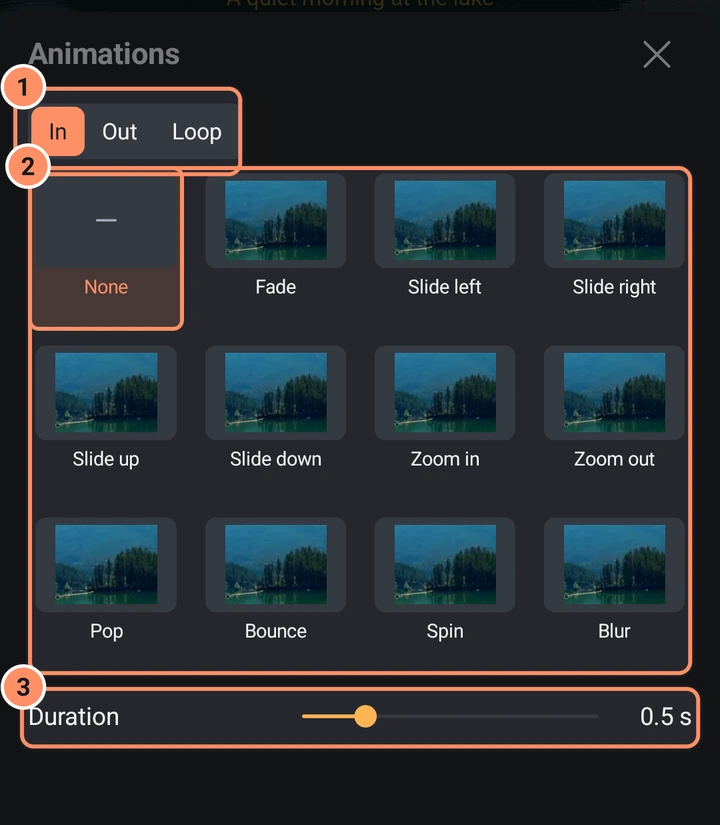
| Animations | Duration | |
|---|---|---|
| In and Out | Fade, Slide left, Slide right, Slide up, Slide down, Zoom in, Zoom out, Pop, Bounce, Spin, Blur | 0.1 to 2 seconds (default 0.5) |
| Loop | Pulse, Wobble, Float, Rotate | 0.2 to 4 seconds (default 1) |
An In animation is placed at the start of the clip, an Out animation at its end, and a Loop animation runs for the whole clip. If that end of the clip already has a transition, picking an animation replaces it, and the sheet says so.
Transitions between two clips
A transition blends one clip into the next. They need two visual clips where the second starts and ends later than the first.
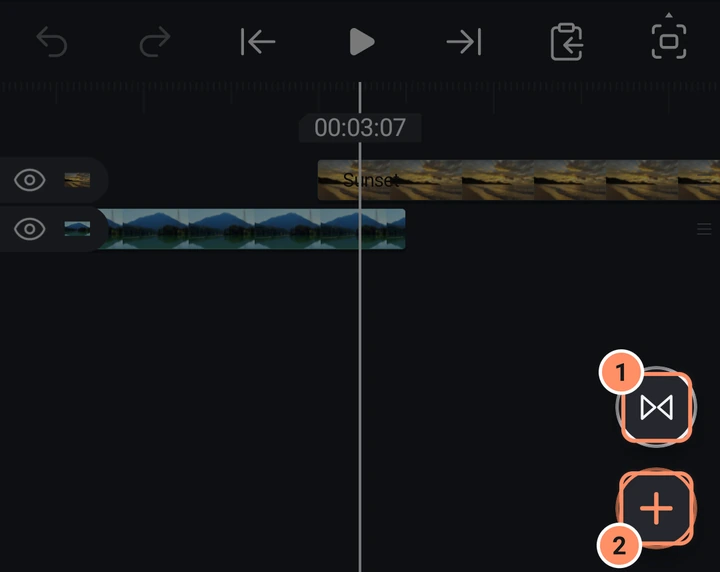
- Place the two clips so they touch or overlap. With nothing selected, a round Transition button appears at the bottom right of the timeline area, just above the + button, when the playhead is at the cut. Or select the two clips and tap Add a transition between the two clips in the bar at the bottom.
- The Transition sheet shows "Clip A to Clip B" and a grid of transitions with None first.
- Pick one and set the Duration (0.1 to 2 seconds, default 0.5).
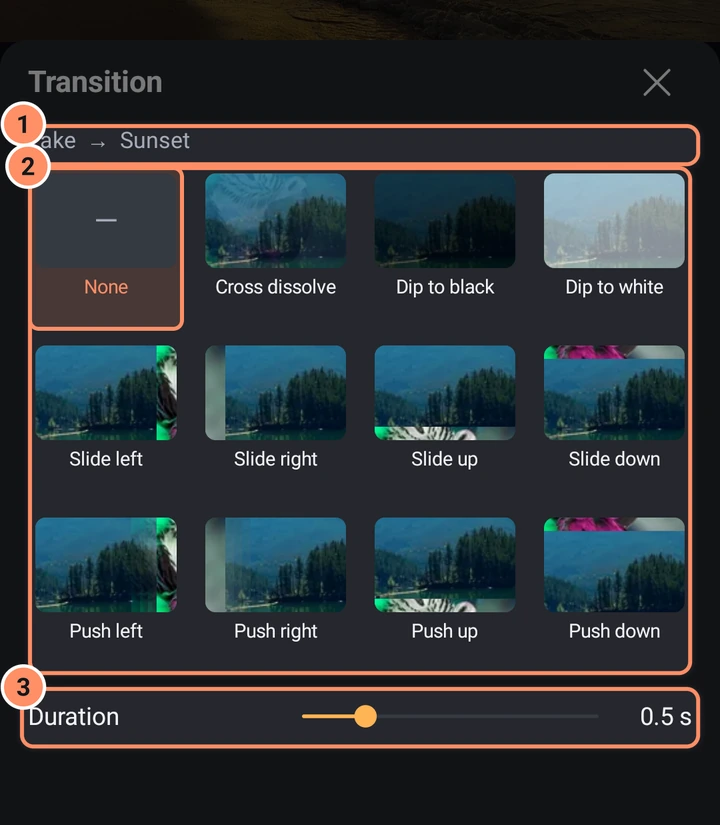
Available transitions: Cross dissolve, Dip to black, Dip to white, Slide left, Slide right, Slide up, Slide down, Push left, Push right, Push up, Push down, Wipe right, Wipe left, Wipe up, Wipe down, Clock wipe, Zoom in, Zoom out, Spin, Blur, Glow, Swirl, Whip pan, Glitch, Flash, Shake, Pixelate and Noise dissolve. Push, Zoom in, Zoom out and Spin have motion blur. The grid scrolls: swipe it up to see the last ones.
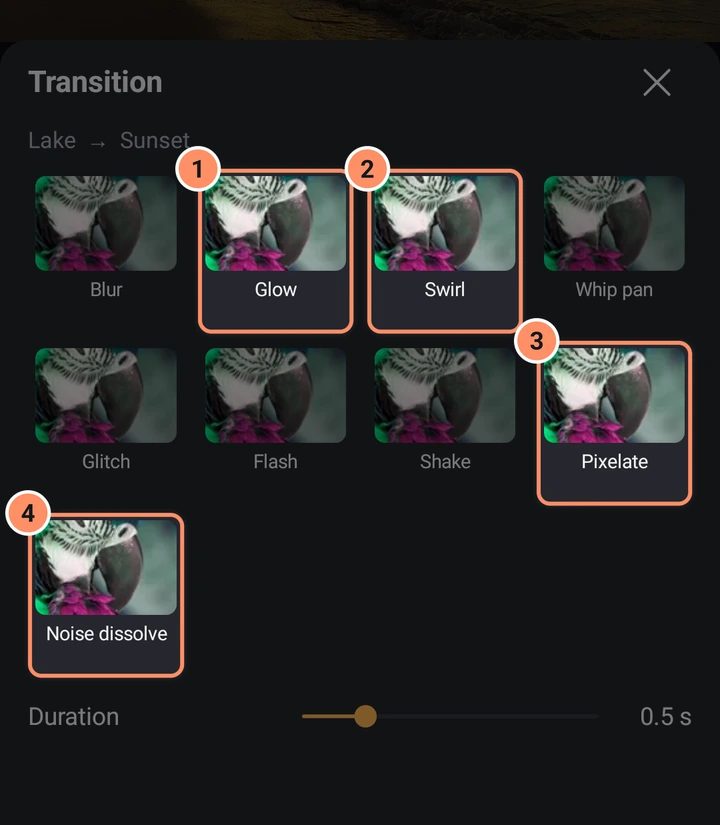
If the clips do not overlap enough, the app moves or shortens them and tells you, for example "Moved ... earlier so the clips overlap." and "Shortened to 0.5 s to fit the clips." Sound, camera and null layers cannot have transitions.
To get the Transition button out of the way, swipe it sideways towards the edge of the screen; it comes back when you move the playhead. Settings > Editor > Transition button in preview moves it to the bottom left of the preview.
Make your own
An effect, a Move effect or a set of keyframes does the same job with more control. Save a look you like as a preset to reuse it: see Assets, templates and presets.