 AbsentMotion
Settings
Every setting in the drawer on the home screen, with its default.
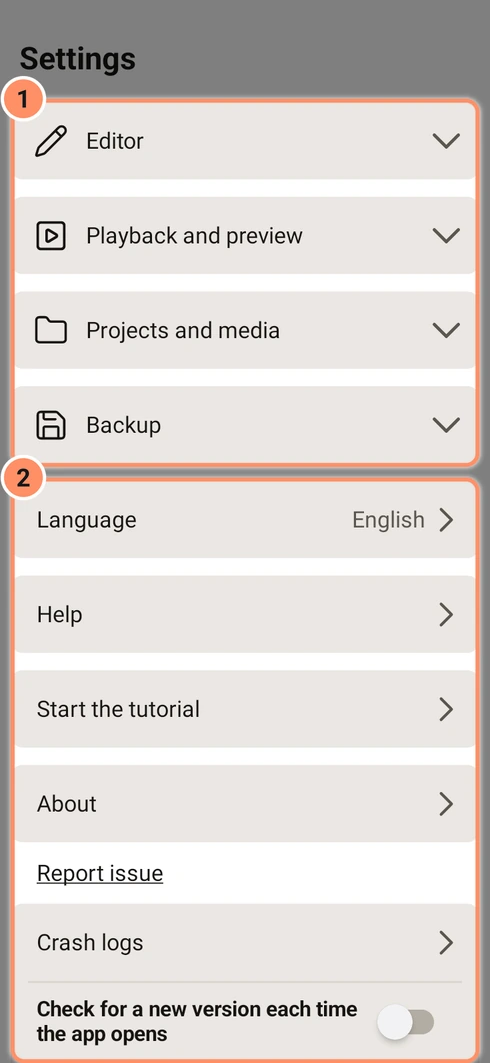
Tap the menu button at the top left of the home screen to open the Settings drawer. It has four groups that start closed (tap a group to open it) and a few more rows below them.
Editor
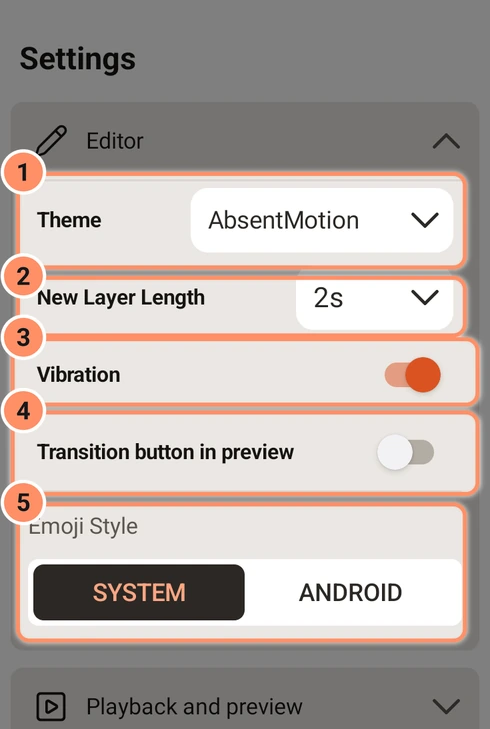
- Theme. AbsentMotion (the default: a dark editor and a warm light home screen), Daylight (light everywhere) or Custom. Import theme file... loads a theme from a small file (see below).
- New Layer Length. How long new layers last: 1 to 10, 15, 20, 25, 30, 45 or 60 seconds. The default is 2.
- Vibration. Small vibrations on the timeline for snaps, long presses and reordering. On by default.
- Transition button in preview. Off by default. The round button that adds a transition normally sits at the bottom right of the timeline area. Turn this on to have it at the bottom left of the preview instead. See Transitions and animations.
- Emoji Style. SYSTEM (your phone's emoji, the default) or ANDROID (the emoji font that comes with the app, the same on every phone).
Custom themes
A theme file is a small text file in JSON format of up to 64 KB with an optional name and any of the colors you want to change, written as #RRGGBB or #AARRGGBB. Colors you leave out keep the AbsentMotion look. For example:
{"name": "Mint", "Accent": "#5BD6A4", "HomeAccent": "#1B7A4A"}The color names are the editor and home screen colors: TopBar, PreviewBg, TimelineBg, Panel, PanelInset, Button, Field, FieldHi, Chosen, Well, Deepest, Line, MenuLine, KeyDigit, KeySymbol, Scrim, PressEditor, OnDark, OnDarkDim, Caption, Faint, Inactive, OnScrim, Accent, AccentLit, AccentGlow, AccentDeep, OnAccent, Cool, CoolDeep, Gold, Warning, Bookmark, LayerBar, LayerBarStripe, TextBar, TextBarStripe, AudioBar, AudioWave, OnBar, OnAudioBar, HomeBg, Card, SheetBg, Navy, HomeAccent, OnNavy, OnNavyAccent, NavyHi, NavyLine, HomeInk, HomeMid, HomeDim, HomeFaint, HomeLine, HomePanel, HomeDrawer, SwitchOff, Thumb, MenuScrim and PressHome. One custom theme is kept at a time; importing a new file replaces it and applies it at once.
Playback and preview
- Preview Quality. FULL, HALF or QUARTER (default Full): how sharp the editor preview is. Lower is faster on a slow phone and does not change exports. The same switch is in the preview strip of the editor.
- Graphics. AUTOMATIC or OPENGL (default Automatic): how the app draws the preview and the export. Automatic uses Vulkan and switches to OpenGL when Vulkan cannot start. If the app closes by itself while the graphics are starting, the next start uses the other one. Choose OpenGL if the preview or exports look wrong on this phone. The line under the switch says which one is in use. With OpenGL some AI tools are left out; see Requirements and versions.
- Playback Resampling. LOW, HIGH or ULTRA (default Ultra): the quality of the sound resampling, when the editor plays and when the sound is mixed for an export.
- Use preview copies of large videos. On by default. For videos bigger than 1920 x 1080, or with few keyframes, the app makes a small, light copy in the background and uses it for the preview. Exports always use the original file. The copies are kept in a cache of up to 2 GB.
- Clear preview copies deletes them. The row shows the space they use.
- Pre-render the preview while idle. On by default. When you pause for a moment, the app renders the frames around the playhead in the background until the memory set aside for it is full. A thin green line at the bottom of the time ruler marks the frames that are ready, and they play smoothly. A change throws away only the frames it affects. Turn it off to save battery or memory.
Projects and media
- Show the import card in the project list. Off by default. Adds a card with Choose file at the top of the project list.
- Keep a copy of imported media in the project. On by default. The photo, video or audio you add is copied inside the project, so it keeps working if the original is moved or deleted. Turn it off to save storage if you never move your files.
- Cut-out quality. Standard or AI background removal 2.0: the kind of cut-out you get when you remove the background of a photo. See AI tools.
- Remove caption model. Only shown after the speech model for captions has been downloaded. It shows the size of the file and deletes it; the app downloads it again if you use captions later.
- Delete AI ... model. One row for each downloaded AI Enhance or AI Smooth model, with its size. Tapping it deletes the model; the app downloads it again the next time it is needed.
- Delete Video downloader add-on. Only shown after the add-on has been downloaded. It shows the space the add-on uses and removes it; the Video Downloader asks for it again the next time you use it. See The home screen.
- Use the graphics chip for AI. On by default only for newer graphics chips known to be safe for AI Smooth and AI Enhance; on other phones these run on the processor. Turning it on for another chip asks first, because it can freeze some phones. See AI tools.
Backup
- Back up all projects, Restore from backup and Weekly automatic backup (projects only) (off by default). See Projects, backup and import.
Language
The Language row shows the current language and opens the list of the 25 languages: English, Indonesian, Hindi, Portuguese (Brazil), Spanish (Latin America), Spanish (Spain), Filipino, Vietnamese, Thai, Malay, Arabic, Persian, Urdu, Turkish, Russian, Bengali, Japanese, Korean, Chinese (Traditional), Chinese (Simplified), French, German, Italian, Polish and Ukrainian. Picking one applies it at once.
About, Help and other rows
- Help opens this guide inside the app, without a connection.
- Start the tutorial starts a 5-minute tour. You make a short animation in a practice project, so your own projects stay untouched. If you leave the tour half way, the row becomes Continue the tutorial and a second row, Start the tutorial again, appears. The home screen also offers the tour until you choose Don't ask again.
- About shows the version, the license (GNU General Public License v3.0), a note that AbsentMotion is an independent project, Open source licenses (the full license text of every library the app uses) and two links that open in your web browser: Project home page (the GitHub repository) and Website and guide (the AbsentMotion website with this guide).
- Report issue (the underlined link under About) opens the bug report form in your web browser.
- Crash logs lists the crashes the app recorded. Tap one to read it and use Copy to copy it, for example to send with a bug report. See Troubleshooting.
- Check for a new version each time the app opens. The app asks you once whether it may do this. If it is on, the app makes one request to GitHub for the latest version number when it opens. It sends nothing else and never downloads or installs anything by itself.
- Check for Update does the same check once, now. If a newer version exists, the dialog shows its version and download size. Changelog opens its release notes, and Download update downloads the matching app file (Latest or Compatible version, and the Intel or AMD file on Chromebooks with those chips) inside the app, with a progress bar and Cancel. Before anything is downloaded, the app asks you to turn on Allow from this source for AbsentMotion if Android does not allow it yet. The app checks the file against the checksum and signing key of the release, then Android asks you to confirm the install. If the matching file cannot be found, Download opens the release page. On a Samsung phone, Auto Blocker can stop the install: see Troubleshooting.