 AbsentMotion
AI tools
Auto captions, background removal, noise reduction, AI Enhance and AI Smooth. They run on your phone, offline, and the page says exactly what is downloaded.
On this page
Everything in this page runs on your phone. Your photos, videos and sound are never uploaded. The only downloads are listed in the table at the end.
The AI tools are in three places: the AI category of the Effects Library (Remove Background, Remove Background (video), Reduce Noise and Enhance), the Captions button of the Add menu, and AI Smooth, one of the smoothing methods in a clip's Smooth tool and on the Export screen. For an audio or video clip, AI > Auto captions captions just that clip. Audio clips also have AI > Reduce Noise. A tool that does not fit the selected layer is grayed with a note such as "Select an image layer". One AI job runs at a time, with a progress bar and a Cancel button.
Auto captions
Auto captions turns speech into text layers that appear in time with the voice.
- Select an audio or video clip, then tap AI > Auto captions. Video clips also have an Auto Captions button on page 2 of the tool grid. This works only on that clip, including its trims and speed changes.
- To caption the whole project instead, tap + > Captions and choose Whole project. This entry also lets you choose one audio or video layer.
- Choose the settings below and tap Generate.
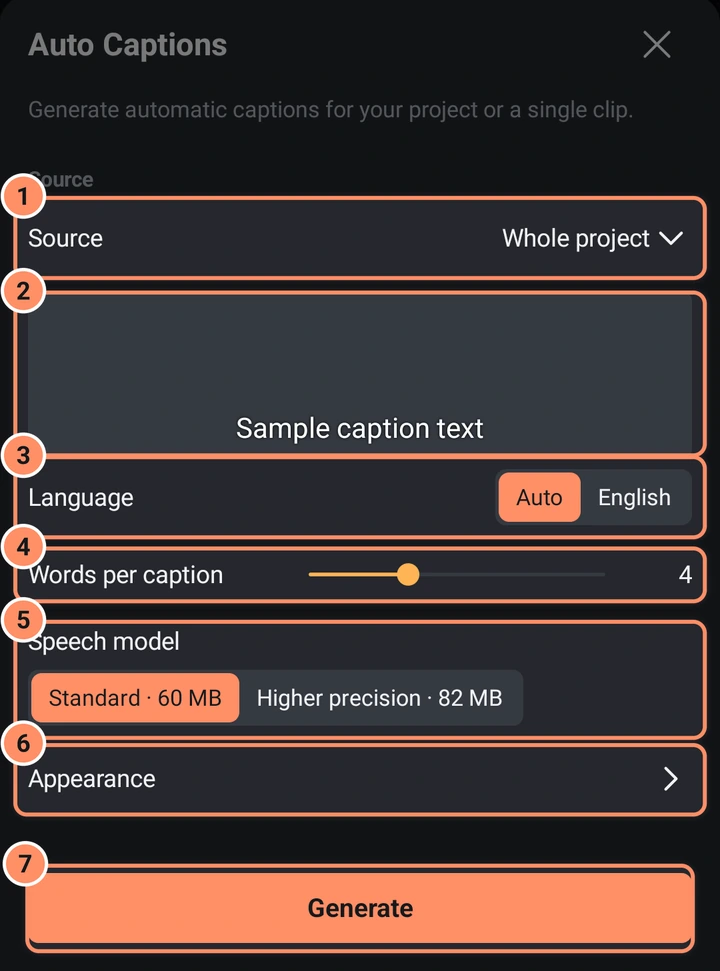
| Setting | Choices |
|---|---|
| Source | Whole project, or one audio or video layer from the list, shown by name |
| Language | Auto (the speech decides the language) or English |
| Words per caption | A slider from 1 to 10 (default 4) |
| Speech model | Standard (about 60 MB, the default) or Higher precision (about 82 MB) |
| Appearance | Folded at first. Tap it to show the five rows below |
| Font | Opens the font browser |
| Size | 50 to 200 % (default 100 %) |
| Color | Eight swatches: white (default), yellow, orange, red, pink, green, blue and black, and Custom for any color |
| Position | Top, Middle or Bottom (default) |
| Outline | A border around the letters, on by default. When it is on, Thickness (0 to 50, default 6) and Outline color (the same swatches and Custom, default black) appear |
The sample caption in the middle of the sheet shows the look you choose, including its position.
The first time, the app asks before downloading a speech model. Standard is about 60 MB. The optional Higher precision model is about 82 MB. Both support multiple languages and stay below 100 MB. Downloads come from the Whisper model repository on Hugging Face and are checked before use. Recognition then runs offline on your device. Settings > Remove caption model removes downloaded caption models.
While captions are generated, the setup controls disappear. The centre shows the current stage, progress and estimated time remaining; Cancel is the only action. The estimate appears after enough work has completed and may change. Long recordings are processed in ten-minute parts.
The result is one text layer per caption, in time with the speech and selected together so that you can restyle them. Each caption starts on time, when its first word is spoken. A caption ends at a long pause, sentence end, three seconds or the word limit. For a clip, caption timing follows its position in the project.
If there is no sound the app says "There is no sound to caption", and if no speech is found, "No speech was found".
Remove Background
Photos
Select a photo layer and open Effects, Add Effect, AI, Remove Background. The app cuts out the main subject and replaces the picture with a version with a transparent background. The original file is kept: the effect list shows a Remove Background row with an AI badge, and its button (Undo this AI change and bring back the original) restores the original picture.
Before it starts, a dialog shows the photo. Keep everything (the default) keeps every subject the app finds. To keep only one person or thing, tap it; tap more places to keep more, and tap a dot again to remove it. Softness feathers the edge of the cut-out and Grow / Shrink moves the edge out or in by a few pixels. They are applied when the cut-out is made. To change them, choose Remove Background again on the same layer: the dialog remembers your taps and settings, and the app starts again from the original photo.
Standard or AI background removal 2.0
The first time you remove a background from a photo, the app asks which cut-out you want. The answer is kept, and you can change it any time in Settings, Projects and media, Cut-out quality.
- Standard is built into the app. It is fast and works offline.
- AI background removal 2.0 gives cleaner edges around hair and fine detail. It is an AI background removal model that is downloaded once (about 62 MB) and then works offline, on single photos only; videos always use Standard. It needs the Latest version of the app.
If AI background removal 2.0 cannot be downloaded or cannot finish a photo, the app uses Standard for that photo and tells you. To free the space again, tap Delete AI background removal 2.0 under Cut-out quality; the app then goes back to Standard.
Videos
Select a video layer and choose Remove Background (video). A dialog says "Every frame of this clip is processed on this phone. The result is a group with the video and a mask layer above it." You choose the size of the mask: Small 360p, Medium 540p (default) or Large 720p, and the dialog estimates the number of frames and the storage needed. Tap Start.
The dialog also shows the first frame of the clip. Keep everything is the default. To keep only one person or thing, tap it on that frame: the app keeps the parts you tapped and follows them from frame to frame, together with anything that touches them, and leaves out everything else. The subject has to be visible on the first frame, so trim the clip to start where it is.
- A clip can be up to five minutes. For longer clips, trim or split it first.
- The app needs free storage for the mask video and warns if there is not enough.
- The result is a group called "name cut out" holding the original clip and a mask layer. To undo it, delete or ungroup the group; this tool has no restore button. Select the group and tap Cut-out Edge to change the Softness and Grow / Shrink of the edge while you watch the preview; Reset goes back to the edge as it was made.
Reduce Noise
Select a sound clip and tap AI in the tool grid (or Reduce Noise in the AI category). Choose what the noise is:
- Voice recording: "Removes the background noise behind speech."
- Wind and rumble: "Cuts low rumble and wind, then cleans up the rest."
- Music or mixed sound: "A gentle clean-up that keeps more of the original."
Tap Start. The cleaned sound is saved as a new audio file for the clip, in mono, and the original stays untouched: the clip's effect list shows a Reduce Noise row with an AI badge and a button to bring back the original. For a video, use Extract Audio first and then clean the new audio layer.
Enhance (video)
Select a video layer and choose Enhance in the AI category. Pick what to do; the ? next to each choice explains it, says roughly how long it takes and which phones suit it.
| Choice | What it does | Clips up to |
|---|---|---|
| Upscale 2x | Doubles the width and height and draws in new detail | 720p |
| Upscale 4x | Four times wider and taller, for small clips such as old phone videos | 360p |
| Sharpen detail | Brings back fine detail and keeps the size | 1080p |
| Sharpen faces | Finds faces looking at the camera and sharpens only them, blended softly into the picture | any size |
- Sharpen detail has a Quick, without AI switch: it adds the normal Sharpen effect instead, which is instant and works on every phone.
- Cartoon or animation uses a model made for drawn and animated video.
- Keep film grain cleans less noise, so grain and fine texture stay (needs a second small download).
- "Upscale 2x works on clips up to 720p" means the clip is too big for that choice; pick another choice or use a smaller clip.
Before you start, the dialog checks the phone and estimates the time, for example "About 4 min for this clip", "This phone will most likely struggle: about 2 h" or "This phone can't run it". After the model is downloaded it measures the speed with one small test frame, so the estimate gets better. Tap Start (or Download and start the first time).
Every frame is processed once and saved as a new video for the clip, with the clip's sound. Only the trimmed part of the clip is processed, and a clip can be up to five minutes. The screen stays on while it works, you can cancel at any time, and the app pauses when the phone gets too hot. The original is kept: the clip's effect list shows an Enhance row with an AI badge and a button that brings the original back, and Undo works too.
AI Enhance is slow on purpose: it draws real detail. On a recent top phone, 10 seconds of 540p video take about 5 to 10 minutes for Upscale 2x; mid-range and older phones take much longer. Short clips are the best fit.
AI Smooth
AI Smooth draws in-between frames with an AI model. It copes with fast motion and with edges that appear or disappear better than Optical flow, but it is much slower. Choose it as the method in a clip's Smooth tool (see Photos, video and speed) or as the Frame Interpolation method when you export (see Export).
- Low uses a lighter model and suits Good phones.
- Medium is the model to start with.
- High uses a larger model for the hardest scenes; keep it for Fast phones or short clips.
Each level has its own model, downloaded once (about 11 MB) after the app has shown its size. The dialog and the Export screen show the phone check and the time estimate. On a recent top phone, 10 seconds of 1080p video at 30 to 60 fps take about half a minute to a minute; Basic phones can take 10 minutes or more.
AI models in Settings
Settings, Projects and media lists every downloaded AI model with its size and a Delete row. A deleted model is downloaded again the next time it is needed.
What is downloaded
| Item | When | Size | From |
|---|---|---|---|
| Speech model for captions | After you confirm the download | about 60 MB Standard, or 82 MB Higher precision | Hugging Face |
| Background removal model | Never: it is inside the app | about 3 MB | |
| Noise reduction | Never: it is inside the app | ||
| AI Enhance models | The first time you use Enhance, after you tap Download and start | about 2.4 MB (cartoon 1.3 MB, film grain 2.4 MB more) | this project's GitHub releases |
| AI background removal 2.0 | The first time you remove a background with AI background removal 2.0 | about 62 MB | this project's GitHub releases |
| AI Smooth models | The first time you use AI Smooth at a level | about 11 MB per level | GitHub (the rife-ncnn-vulkan project) |
| Sharpen faces | Never: it uses Android's own face finder |
Every model is checked against a fixed fingerprint (SHA-256) before it is used; a damaged file is deleted and downloaded again. Nothing else is downloaded for AI. The Privacy page lists every use of the internet.
Speed
A short clip on a recent phone takes seconds to minutes; a long video or an older phone takes longer. Keep the app open and the screen on while a tool runs.
AI Smooth and AI Enhance run on the phone's processor on most phones. Newer graphics chips that are known to be safe for them (recent Snapdragon and Mali chips) are used instead, because they are much faster, and the time estimates follow the chip that will do the work. Use the graphics chip for AI in Settings, Projects and media turns this on or off. Turning it on for another chip shows a warning first: on some phones it can freeze the whole phone, and after a restart AI uses the processor again. If AI work on the graphics chip ever fails or is cut off, the app says so and uses the processor from then on.