 AbsentMotion
Creating a project
Every setting of the new project sheet.
On this page
Tap the round + at the bottom of the home screen. A sheet slides up from the bottom. It opens with the values you used last time (shape, resolution, frame rate and background; the name is always new). Tap Back to close it without making anything.
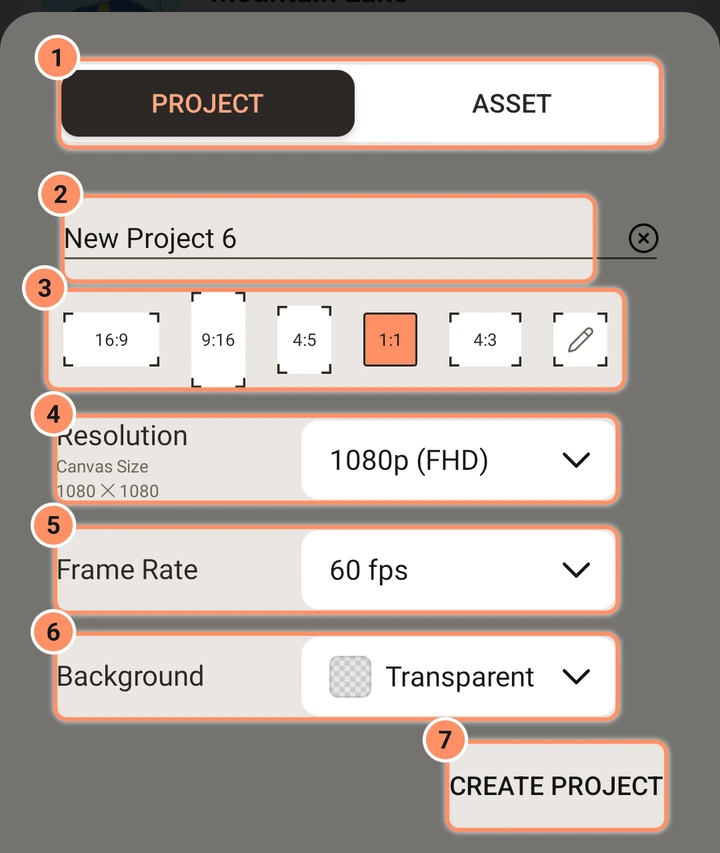
Project or asset
The switch at the top has two choices, PROJECT (the default) and ASSET. An asset is a reusable piece with a transparent background: its background setting is locked to Transparent. See Assets, templates and presets.
Name
The name starts as "New Project 1", "New Project 2" and so on (assets start as "New Asset"). Tap the X in the field to clear it. A blank name falls back to the default.
Shape of the picture (aspect ratio)
Buttons for 16:9, 9:16, 4:5, 1:1 and 4:3, and a pencil button for a Custom aspect ratio. The default is 1:1. Pick 9:16 for phone video, 16:9 for a landscape video.
Resolution
The Resolution row shows the canvas size, such as 1920 x 1080. For the five shapes it is a list of the short side:
| Choice | Short side |
|---|---|
| 2160p (4k) | 2160 |
| 1440p (QHD) | 1440 |
| 1080p (FHD), the default | 1080 |
| 720p (HD) | 720 |
| 540p (SD), 360p, 270p, 180p | as named |
The long side follows the shape. A 16:9 project at 1080p is 1920 x 1080, a 4:5 project is 1080 x 1350, and a 4:3 project is 1440 x 1080.
With Custom aspect ratio, the list becomes two number fields for width and height, with a round Link button between them. When Link is on, changing one side keeps the shape the two fields had when you turned Link on. Each side can be from 32 to 4096 pixels; the app corrects the value when you leave the field.
To keep a size for later, tap + Save size under the fields and give it a name (for example "Banner"). Saved sizes appear as buttons next to it; tap one to fill in its width and height. Long-press a saved size (right-click on a computer) to rename or delete it. In the editor, the project settings offer the same saved sizes when you choose a custom ratio.
A larger canvas looks sharper but needs more memory and takes longer to export. 1080p is a good choice for most projects. You can change the resolution later in the editor's project settings, which does not rescale your layers.
Frame rate
Choose 12, 15, 18, 20, 24, 25, 30, 48, 50, 60, 90 or 120 frames per second. The default is 60. Use 24 or 30 for a film look and smaller files, and 60 for smooth fast motion. 90 and 120 are for very smooth motion on high-refresh screens; not every phone can export a video that fast, and the Export screen tells you when yours cannot. This sets how often the editor and the export draw a picture. Video clips keep their own frame rate; see the frame interpolation option on the Export page.
Background
The color behind your layers: Black, White, Light Gray, Green, Blue or Transparent (shown as a checkerboard). A new install starts with Transparent. Transparent areas of an exported video come out black; GIF and image exports let you choose what transparent areas become, and PNG keeps them.
Buttons at the bottom
- CREATE PROJECT (CREATE ASSET for an asset) makes the project and opens the editor on it.
- The X below it closes the sheet.
If there is not enough storage the app says so and does not create the project.