 AbsentMotion
Getting started
Install AbsentMotion, make your first project, animate something and export it.
Install
- Open the download page on your Android phone. It picks the right file for your phone.
- Open the downloaded file. If Android says your browser is not allowed to install apps, tap Settings, allow it for this install, go back and tap Install.
- Open AbsentMotion.
Apps installed this way update the same way: install the newer file over the old one and your projects stay. Check your Android version first if you are not sure which file you need: see Requirements and versions.
The first start
The first time you open the app it shows two screens before the home screen.
- Choose your language. The app has 25 languages: English, Indonesian, Hindi, Portuguese (Brazil), Spanish (Latin America), Spanish (Spain), Filipino, Vietnamese, Thai, Malay, Arabic, Persian, Urdu, Turkish, Russian, Bengali, Japanese, Korean, Chinese (Traditional), Chinese (Simplified), French, German, Italian, Polish and Ukrainian. Your phone's own language is listed first when the app has it. You can change it later in Settings.
- Check what this device can do. A quick test shows which video formats and sizes your phone can export and how fast it is (Fast, Good or Basic). It runs once, takes a few seconds, and everything stays on the phone. You can tap Skip. The same screen has a switch that lets the app ask GitHub, once each time it opens, for the newest version number. It starts on and sends nothing else.
The app asks for no permission at the start. Photo, video, audio, camera and microphone access are asked for the first time you use a feature that needs them.
Make your first project
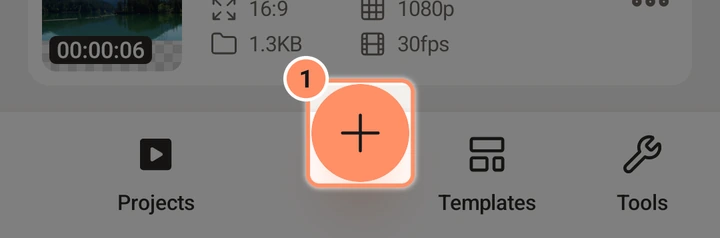
- On the home screen tap the round + button at the bottom. This is New project.
- Pick a shape (16:9, 9:16, 4:5, 1:1 or 4:3), a resolution (1080p is a good start) and a background. Leave the frame rate alone if you are unsure. Tap CREATE PROJECT. The editor opens on an empty project. Details: Creating a project.
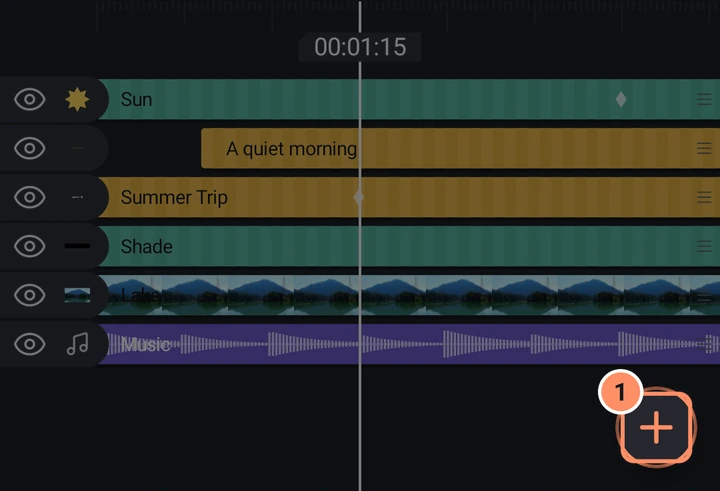
- Tap the round + at the bottom right of the timeline area and choose something to add: a shape, a photo or video from the Media tab, or Text.
- Drag on the preview to move the layer. Pinch to make it bigger or smaller.
- Drag left or right on the timeline to move through time. To move a layer in time, press and hold its bar, then drag. To trim it, select it and drag the round grips at its ends.
- Press the play button to watch it.
There is no Save button. The project is saved a moment after every change.
Animate something
Animation in AbsentMotion is made of keyframes: a keyframe stores a value (a position, a size, an opacity) at one moment, and the app fills in the movement between keyframes.
- Tap a layer on the preview or timeline. A grid of tools appears at the bottom.
- Tap Transform. The Move tab is open.
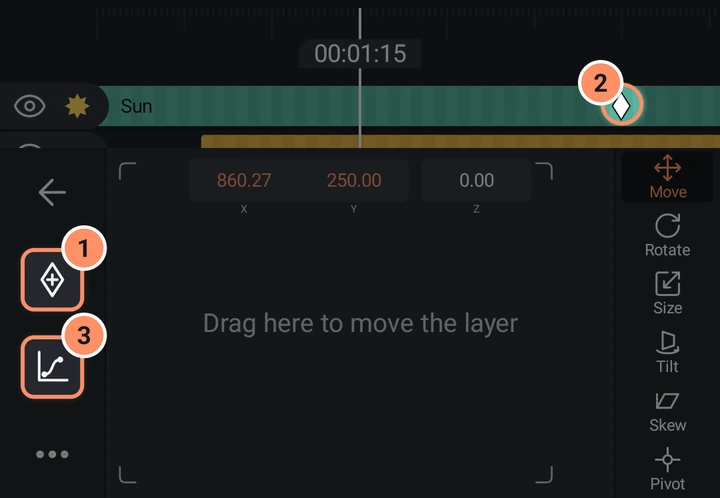
- Put the playhead where the movement should start and tap the keyframe button (the diamond) in the left column.
- Move the playhead to a later time and drag the layer to a new place. Because the property already has a keyframe, a second one is created for you.
- Play. Tap the easing button (the curve) to make the movement speed up, slow down or bounce. See Keyframes and easing.
For quick results, select a layer and tap the round Animate button at the bottom right of the preview to pick an In, Out or Loop animation, or open Effects and try one of the Move effects.
Export
- Tap the share icon in the top bar (named Export & Share).
- The Video card is selected. Tap Export.
- Wait for the progress bar to finish. You can switch to another app meanwhile: a notification shows the progress.
- Tap Share Video, or find the file in Movies/AbsentMotion.
All the options (formats, resolution, frame rate, GIF, audio only) are on the Export page.
Where things are
| I want to | Go to |
|---|---|
| Start a project | + on the home screen |
| Add a layer | + in the editor (shown when nothing is selected) |
| Change a layer | Tap it, then use the tool grid |
| Animate | The keyframe button in a panel, or the Animate button |
| Add an effect | Select a layer, Effects, Add Effect |
| Undo | The first button of the play bar |
| Export | The share icon in the top bar |
| Change a setting | The menu button at the top left of the home screen |
Next
- The home screen and the editor screen show every button.
- Using effects explains the effect library.
- Troubleshooting and questions has answers to common problems.