 AbsentMotion
Text and fonts
Add and style text, choose from 150 fonts, fill letters with a picture, animate text, give it a talking sound and make captions.
On this page
Add text
Tap the + button and then Text. A text layer is added in the middle of the canvas (gray, Roboto Regular, 18 pt, left aligned) and the full-screen text editor opens at once.
At the top of the editor:
- Alignment cycles left, center, right and justify.
- The font name (shown in its own style) opens a strip with your recent fonts, your favorites and Show All Fonts.
- The size button (such as "18pt") opens a slider with 25 sizes from 5 to 144 pt.
- The color swatch opens the color picker with the eyedropper.
- The tick (Done) closes the editor.
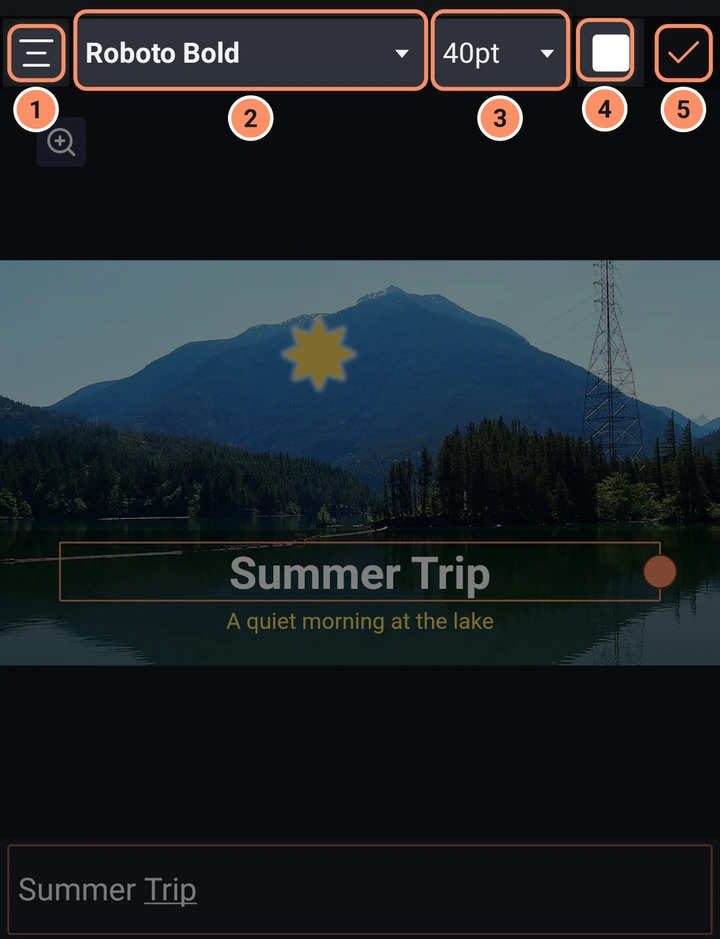
Under them is the preview and then the text box, which says "Enter your text here." until you type. Drag the round handle at the edge of the text frame in the preview to change the width at which lines wrap. The name of a text layer is its text, until you rename it.
To edit the text later, select the layer and tap Edit Text.
Style text
The other tools work on text as on any layer.
- Fill & Color gives the letters a color, a gradient or a picture or video (Media).
- Frame & Shadow: Stroke is the outline of the letters. Border and Shadow add more.
- Opacity, Transform and Effects work as for shapes.
- Convert to Outline (layer menu) turns text into a shape you can edit point by point. It cannot be turned back into text.
Emoji follow the Emoji Style setting: your phone's emoji or the set that comes with the app. See Settings.
Fonts
The catalog has 150 font families. 50 of them are built into the app. The other 100 are downloaded from Google Fonts the first time you choose one (they show a cloud icon and "Downloads when chosen"; the download needs an internet connection). A project that uses fonts you do not have shows Fonts not on this phone when you open it, and the text uses another font until you download them.
The font browser
Show All Fonts opens a grid of fonts, each shown with a sample. At the top is a menu button that opens a drawer with these filters:
- Categories: Serif, Sans Serif, Display, Handwriting, Monospace, Favorite and Imported.
- Sorting: Popular or Alphabetical.
- Languages: All Languages or one of sixteen scripts such as Arabic, Cyrillic, Greek, Hebrew, Japanese, Korean, Chinese, Thai, Vietnamese and Latin.
- Import Fonts.
The search field at the top is labeled "Type here to search". The star on a font marks it as a favorite.
Your own fonts
Import Fonts lets you pick font files from your phone. If a file cannot be used, a list says which ones failed. Press and hold an imported font to remove it.
Animate text
The effects of the Text category animate text letter by letter.
- Text Progress reveals the text by character, word or line (typewriter and fade in by word are presets).
- Text Transform moves, rotates, scales and fades each letter in turn (presets: Wave and Spin Cascade).
- Text Randomizer scrambles letters before they settle (preset: Scramble).
- Text Shake shakes each letter on its own, like nervous dialogue in a game: Shake, Jitter, Wave, Circle or Wobble. Lower Letters Shaking to shake only some letters, picked again every few moments (presets: Nervous, Scared, Uneasy, Floaty, Wavy, Dizzy, Wobbly).
- Text Blips types the text out and plays a short blip for each letter, like a character talking in a game. Pick one of eight voices, its pitch and how fast it types; spaces and punctuation stay silent, with a short pause after punctuation. The blips play in the preview and in the export (presets: Hero, Monster, Robot, Fast Talker, Typewriter).
- Font Weight makes the letters thinner or bolder and can be animated. It works with variable fonts: Raleway, Quicksand, Comfortaa, Lora, Bitter, Orbitron, Playfair Display and Dancing Script, or a variable font you import.
- Count Up/Down and Timecode turn text into a counter or a clock.
- Text Along Path sets the text along an arc, a circle or the shape just beneath it; animate Position to make it run along the path.
See Using effects for how to add them, and the effects library for every setting.
ASCII, in the Stylize effects, works the other way round: it turns any layer, such as a video, into text art made of letters and symbols.
Captions
Auto Captions listens to the speech in a video or sound and makes one text layer per caption, on the phone and offline. See AI tools.